
Bulk Clone Professional OAuth
Connecting Another Jira Site (Cross-Site Clone) — User Guide Overview Bulk Clone Pro can clone Work Items into another Jira Cloud site, not just the one it is installed on. Before you can do that, an administrator connects the destination site once from the Connected Sites screen and authorizes access using OAuth — the same secure “Sign in with Atlassian” style consent you already use across Atlassian products. You never type or store a password or API token. Authorization happens entirely through Atlassian’s own login and consent screen, and access can be revoked at any...
Read MoreBulk Clone Professional Cloud – Video Tutorials
On this page we have gathered all our Video Tutorials for you to get fast productive with Bulk Clone Use Cases for Bulk Cloning Operations Introduction Overall Introduction Setup & Configuration Schedule Bulk Clone Jobs Setting up a remote connection 2. Setting up Bulk Clone with a Workflow Post Function 3. Usage of Smart Templates Everyday Cloning scenarios & feature capabilites Bulk Clone from multiple source projects into a merged target project 3. Bulk Clone Hierarchies of work items – Epics –>Stories->subtasks etc....
Read MoreBulk Clone Cloud – Bulk delete of clone logs
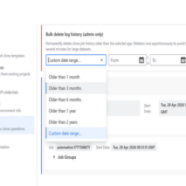
Context The “Log” tab in **Bulk Clone Settings** lists every clone job that has ever run in your Jira site, grouped by month. Over time this list can grow large. Jira administrators have an extra **Bulk delete log history** panel at the top of the Log tab that lets them delete many job logs at once, in the background. This feature only deletes the **clone job history records** (the entries you see on the Log tab). It does **not** delete any cloned Jira issues, comments, or attachments. Who Can Use It The bulk delete panel is **only visible to Jira administrators**....
Read MoreRelease Notes – Bulk Clone Professional Cloud
Below you can view a full history of Release Notes for Bulk Clone Professional Cloud 2026-09-18 – Version 6.0 Bulk Clone into other Jira sites — Advanced edition (not available in Atlassian Government Cloud Versions) Cross-site cloning. Clone into another Jira Cloud site. Subtasks, attachments, comments, links and people come along, and original and clone link to each other. No API tokens. Add a site, click Authorize, approve the Atlassian consent. No passwords stored, revoke access anytime. Shared connections. An admin sets up the site once; each teammate clones with their own...
Read MoreBulk Clone Templates — User Guide
Overview Templates save your entire Bulk Clone configuration so you can reuse it later — from the UI or via Jira Automation rules. A template captures all your clone options, project/issue type mappings, field values, and prefix/suffix settings. Creating a Template Go to Filters > Search for work items > Apps (top right) > Bulk Clone to open the Bulk Clone form. Configure your clone settings: – Select source issues via JQL – Set target project and issue type mappings – Enable/disable options (subtasks, attachments, comments, etc.) – Configure field values,...
Read MoreScheduler Automation with Bulk Clone for Jira Cloud
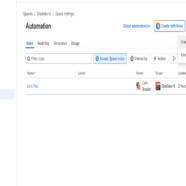
Jira Automation — User Guide Overview Bulk Clone Pro can be used as an action inside Jira Automation rules. This lets you automatically clone Work Items when certain conditions are met — for example, cloning a set of template issues every time a new Epic is created, or on a scheduled basis. Prerequisites A saved Bulk Clone template — to create one, go to Filters > Search for work items > Apps (top right) > Bulk Clone, configure your clone settings (target mappings, options, field values), then click Save as Template and choose a name and visibility. See the Template Users Guide for...
Read More
We offer professional services within Software Management, Enterprise Agility, Process Engineering, & Tooling. We also offer commercial IT add-ons for Workflow Management Products

We have extensive worldwide experience in countries such as United Kingdom, Germany, United States, France, Sweden, Denmark and others