
Hi and Welcome to the documentation of Bulk Clone Professional Cloud for Jira
On the following pages we will guide you through the setup and usage of this plugin, and you will see how easy it is to get started and how intuitive the plugin is to use.
The documentation contains of the following chapters;
- Installation of the plugin
- Setup of the plugin
- Usage of the plugin
If you have support questions drop us a note here
Check Release Notes on Atlassian Marketplace for specifics.
Installation of the Plugin
- Log into your JIRA instance as an admin.
- Click the admin dropdown and choose Add-ons. The Manage add-ons screen loads
- Click Find new add-ons from the left-hand side of the page.
- Locate Bulk Clone Professional for Cloud via search. Results include add-on versions compatible with your JIRA instance
- Click Try free to begin a new trial or Buy now to purchase a license for Bulk Clone Professional for Cloud. You’re prompted to log into MyAtlassian. Bulk Clone Professional begins to download.
- Enter your information and click Generate license when redirected to MyAtlassian.
- Click Apply license. If you’re using an older version of UPM, you can copy and paste the license into your JIRA instance.
- You’re all set! Click Close in the Installed and ready to go dialog.
Setup of the plugin
The configuration and setup of the plugin is very simple to accommodate and basically follow the same scheme as the built in Jira bulk operations
Default Settings – “Jira Administrator” and “Jira System Administrator” always has global access to Bulk Clone in all instances, all others must apply generic Jira Bulk Operation privileges;
- Global “Bulk Change” operational rights (Found under Administration|System in Jira)
- “Create Issue” permission for the Jira project(s) you are cloning to. (Check Jira Project’s permission scheme)
Special Permission Settings
Bulk Clone can clone without problem if even if the users has only Read Only rights to the source project(s). This is particular useful for instance if you have a “template project(s)” which you want to Bulk Clone from, but want to protect the content of this project not to be altered accidentally by your users.
Usage of the Apps Panel Settings
The Panel contains of these choices
- Templates – Showing all templates (Admin view)
- Clone Spaces – Create a new space by cloning another existing space’s configuration
- xRay – Your Xray Cloud API Configuration
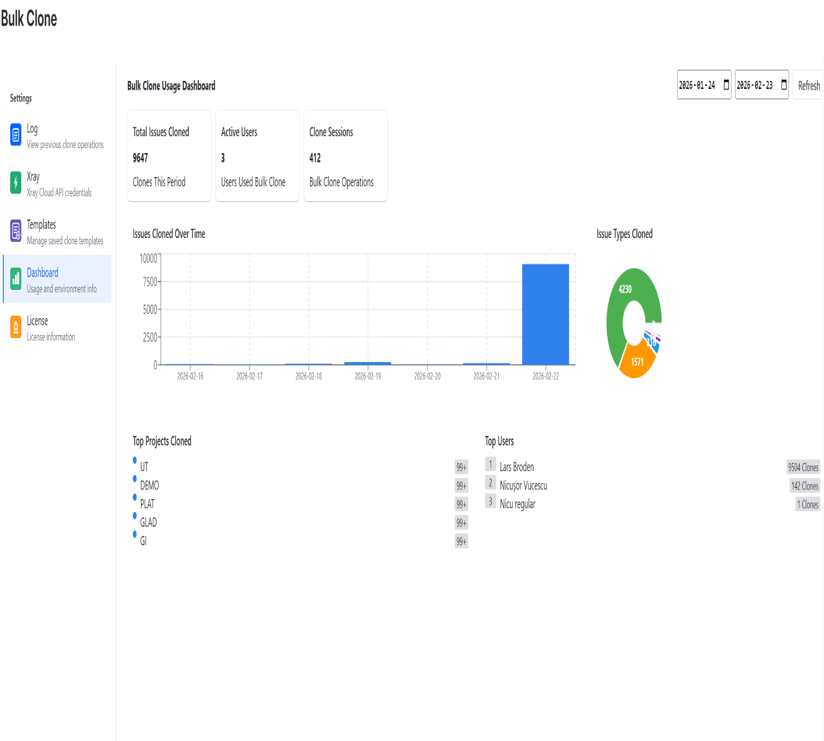
- Dashboard – Usage and environment info
- Log – View previous cloning operations
- License – License Information
Usage of the plugin
Once you have configured the setup of the plugin as described above, it is now time to go to action and use it.
- From Jira: Go To: “Search for Issues” menu to query the result-set you want to clone, alternatively click on existing saved filter.
- Once the result set for the JQL builder is shown you can then choose “Bulk Clone” on the Apps Menu. (Ensure that you have user rights for this menu choice)
- The listings should look like the screenshot below;
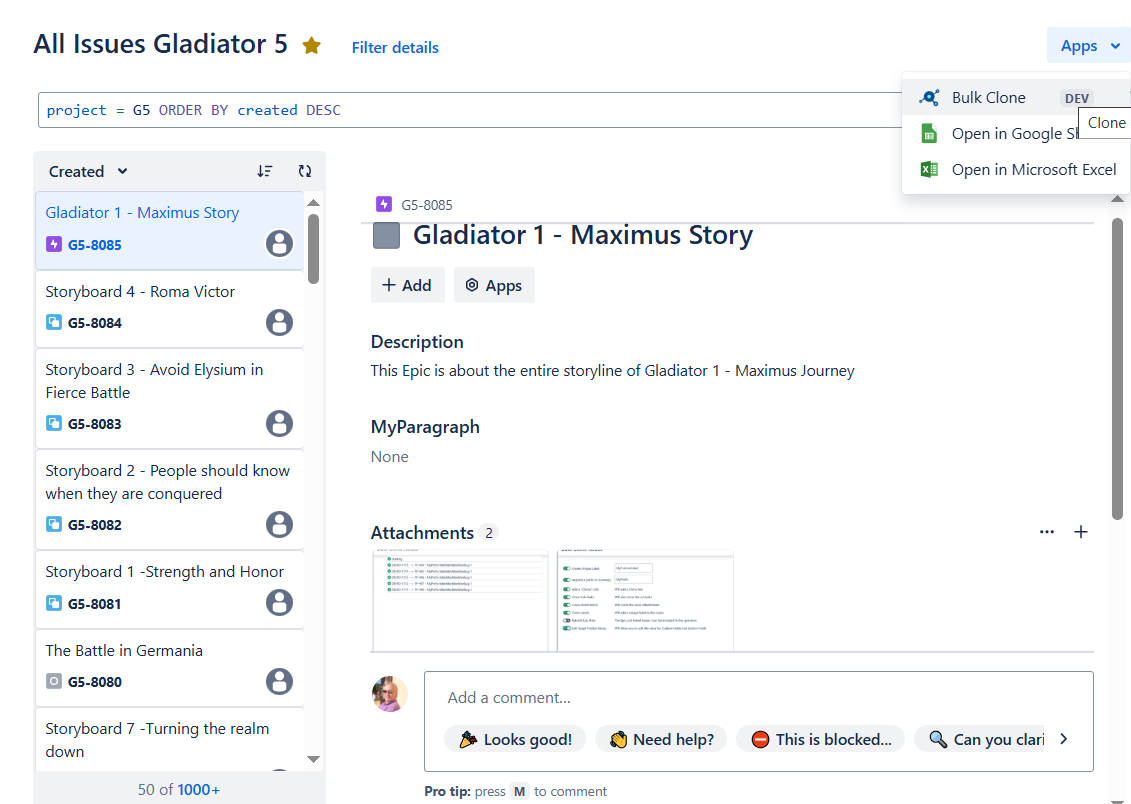
You are directed to the Bulk Clone startup screen, This is where you set your Bulk Cloning Options
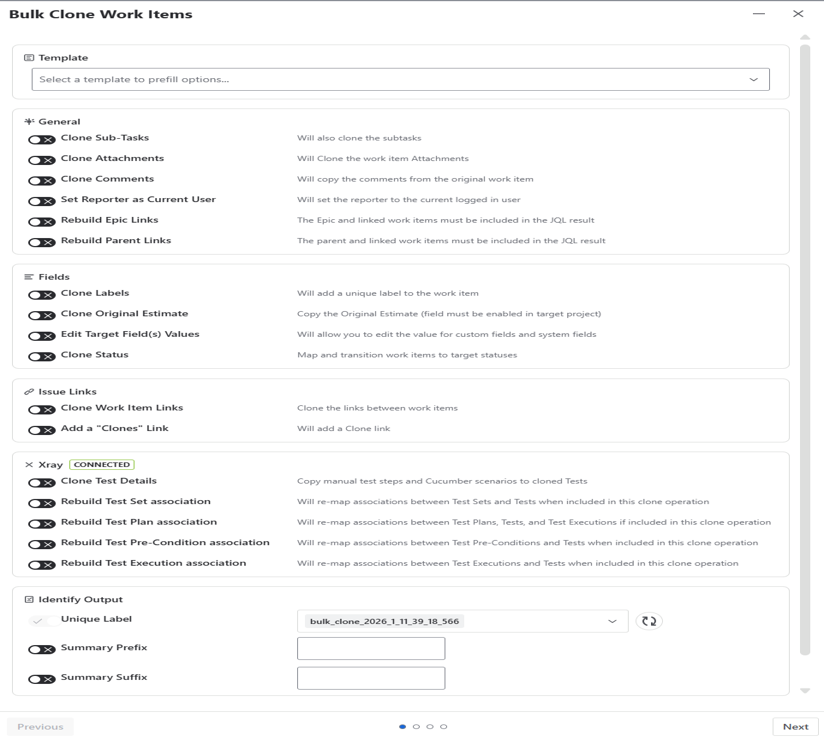
Template – section
- The template “dropdown” allows you to choose a previously saved cloning template (saved on the final confirmation screen. This is particular useful if you are doing repeated cloning operations and don’t want to set the options each time or simply forgot what settings you were aplying before.
General – section
- “Clone Subtasks” – Includes subtasks associated to an issue (They do not need to be included in the JQL query)
- “Clone Attachments“- Any attachment to either Parent issue types or Subtask issue types gets cloned. For
- “Clone Comments” – checkbox allows you to include/exclude cloning of comments associated to an issue, all comment threads for the issue is cloned if this option is checked.
- The “Set Reporter as Current User” – checkbox set the reporter to the current logged in user
- The “Rebuild Epic Links” – checkbox allows you to included/exclude a preservation of link relationships between the issue type Epic and its associated User Stories (associated through the Epic Link Field) if an Epic is also cloned. It includes that the Epic and its associated stories are included in the JQL Query
- The “Rebuild Parent Links” – Allows you to included/exclude a preservation of link relationships of any defined parent/child relationship of issues
Fields – section
- “Clone Labels” – Clones any previously set labels on the issues, both for parents and subtasks
- “Clone Original Estimate” – checkbox allows you to include/exclude any time Estimates for a particular issue, for instance User Stories, Test Cases, Incidents etc.
- The “Edit Target Field(s) Values” – Allows you to include/exclude editing of output values of Jira’s system & custom fields. You can select a free number of fields to alter the output for. Any mandatory fields will also be autodetected here.
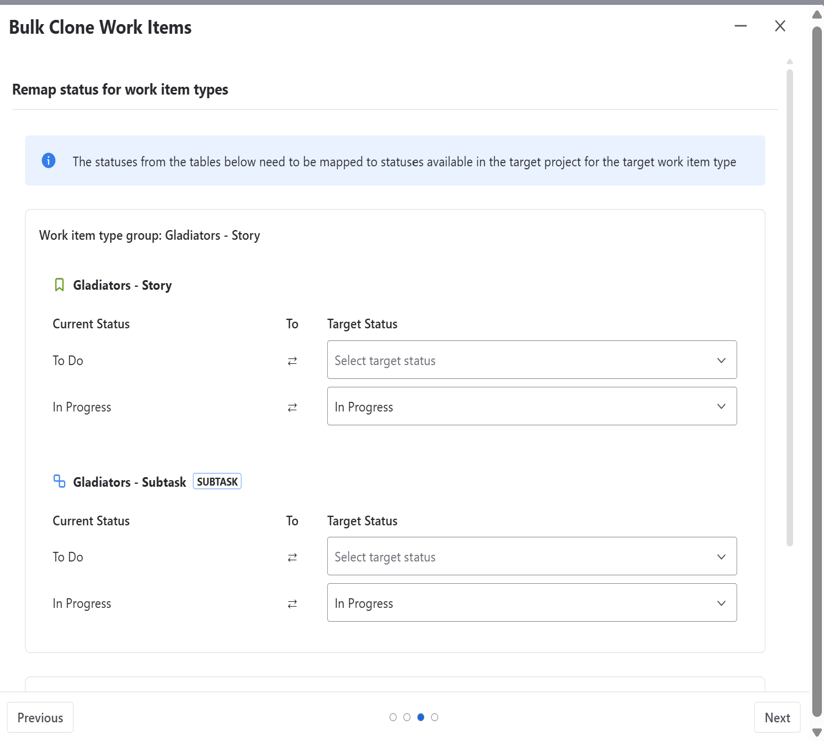
- “Clone Status” – checkbox allows you to clone an work item’s workflow status. if the status exists in the cloned target project it clones it directly according to the source work item status, otherwise you are presented with a “mapping screen” what you want to clone it to.
Work item links – section
- “Clone Work Items Links” – Clones the link between the work items
- The “Add a Clones Link” – Adds a “Clone Link” to the original issue
xRay – section – Note will only appear if xRay is installed and enabled
- “Clone Test Details” – Clones the test the manual steps & cucumber scenarios of a xRay test case
- The “Rebuild Test Set Associations” – Checkbox allows you to included/exclude a preservation of link relationships between a xRay “Test Set” parent issue type and its associated tests (test cases) (without cloning the link of the original source issues)
- The “Rebuild Test Plan Associations” – Checkbox allows you to included/exclude a preservation of link relationships between the xRay “Test Plan” parent issue type and its associated tests or test sets (without cloning the link of the original source issues)
- The “Rebuild Test Pre-Conditions Associations” – Checkbox allows you to included/exclude a preservation of link relationships between the xRay “Test Plan” parent issue type and its associated tests or test sets (without cloning the link of the original source issues)
- The “Rebuild Test Executions Associations” – Checkbox allows you to included/exclude a preservation of link relationships between the xRay “Test Executions” parent issue type and its associated tests or test sets (without cloning the link of the original source issues)
Identify output – section
- The “Unique Label” – Clones the autogenerated label by Bulk Clone so you can identify your cloned set afterwards
- The “Summary Prefix” – field allows you to include/exclude a custom prefix on the “Summary field.
- The “Summary Suffix” – field allows you to include/exclude a custom suffix on the “Summary field.
Once you’re done with your Bulk Clone settings, press “Next”. Here you can configure field settings and set values for “mandatory” fields and/or redirect any issue type to a different project(s) or even change one issue type to another.
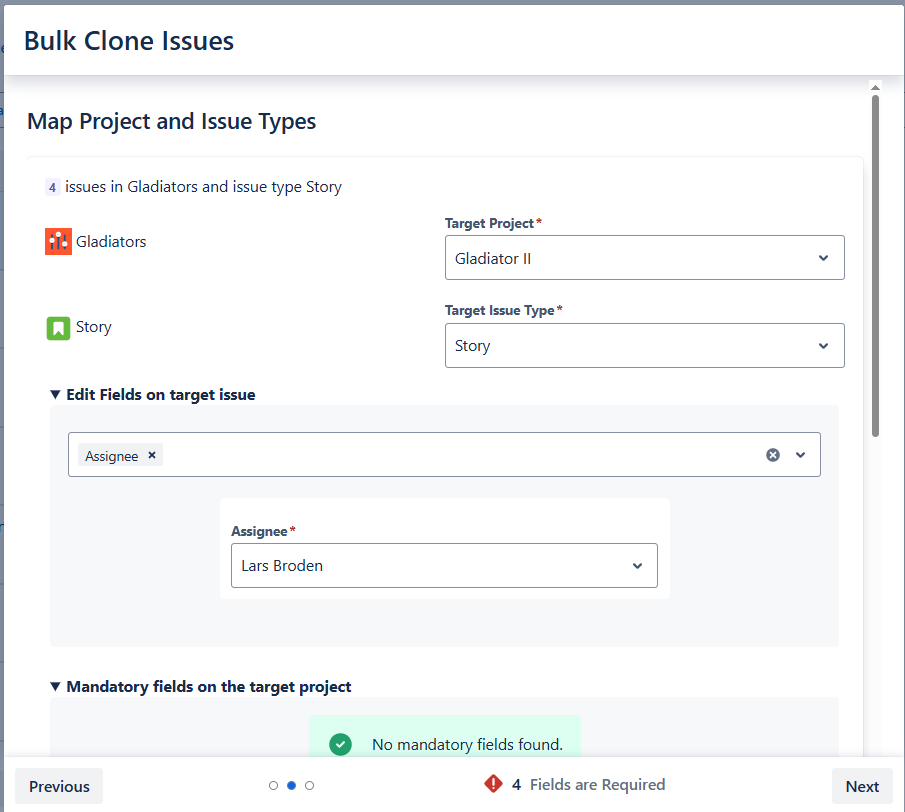
-
- You can also configure Field settings for Subtasks and/or redirect subtasks toa different project(s)
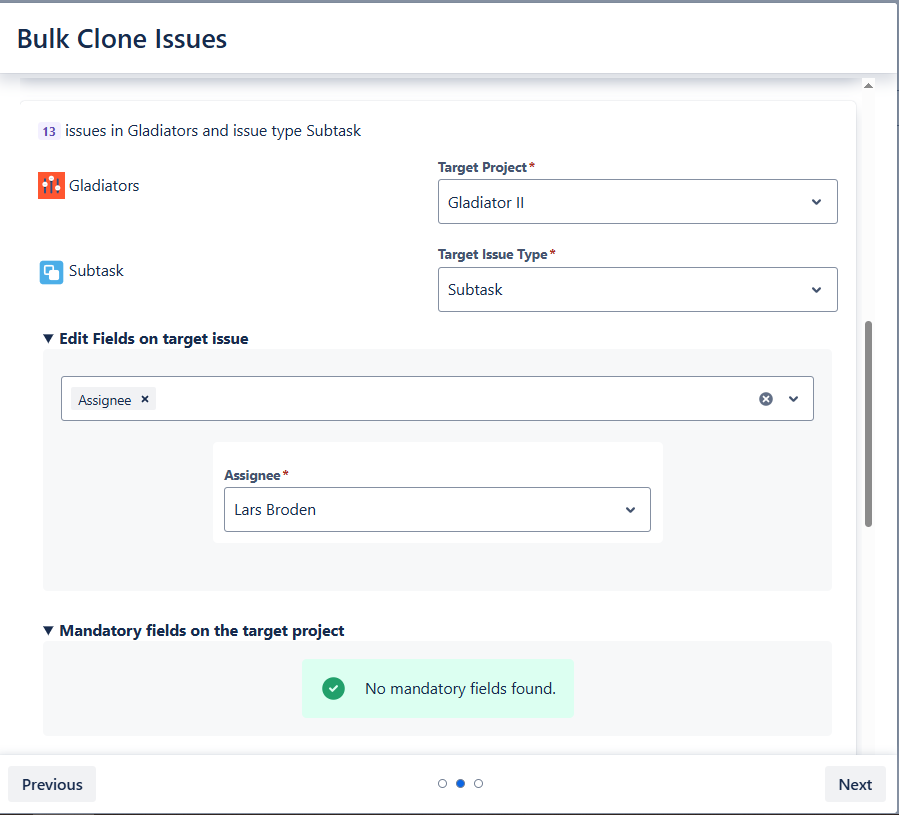
- You can also configure Field settings for Subtasks and/or redirect subtasks toa different project(s)
- If you have enabled the “Clone Status” option in the startup screen and the workflows between the source project(s) and the target project differs, you are prompted with this screen to remap it if you want.
-
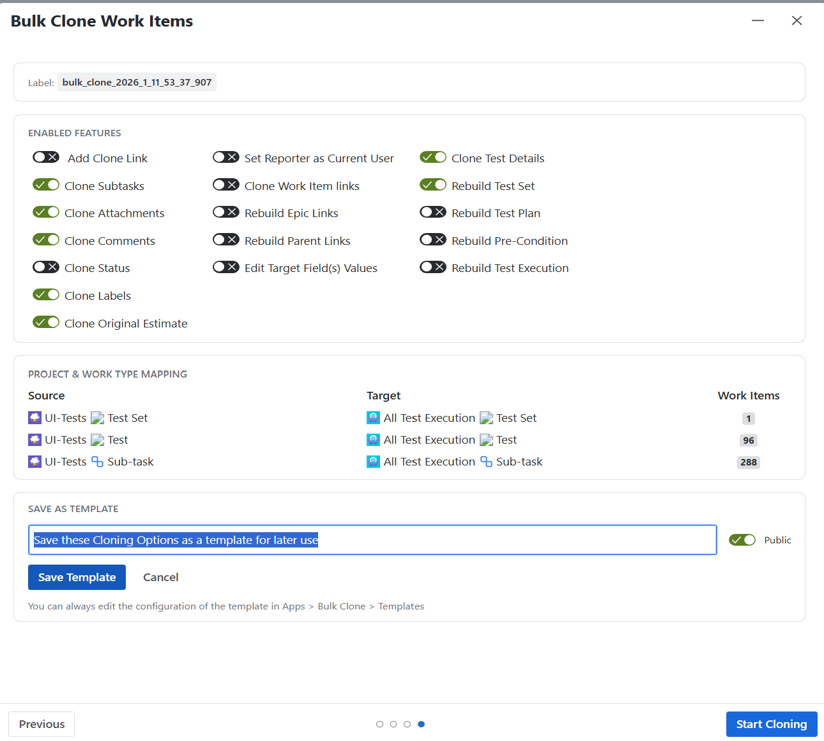
- Once all field configurations are set we are ready to to Bulk Clone, but first a final Confirmation prior to Bulk Cloning which looks like this
-
- Note here: that you can “save your configuration options” in a template, and it can be chosen for the next Bulk Cloning session in the startup screen.
- If you are happy with your set options and field configurations, press “Start Cloning” and the Bulk Cloning operation starts
- You are prompted with the current status progress screen during Bulk Cloning;
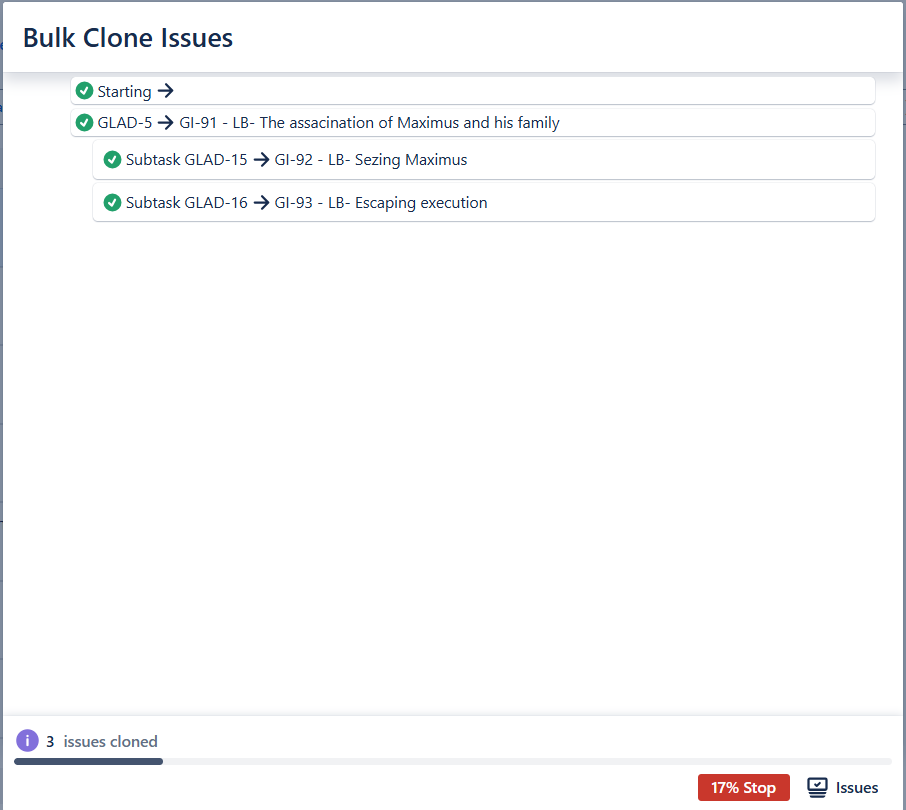
- Once completed, press the “Acknowledge” button to list the outcome of the Bulk Cloning operation
Error handling during Bulk Cloning
- Sometimes you can encounter errors in the Bulk Cloning operations and issues cannot be created and moved. This is due to how you have configured values and permissions in your project(s). If an error is encountered while trying to attempt Bulk Cloning and Error Screen is shown with the failed clones, it looks like this
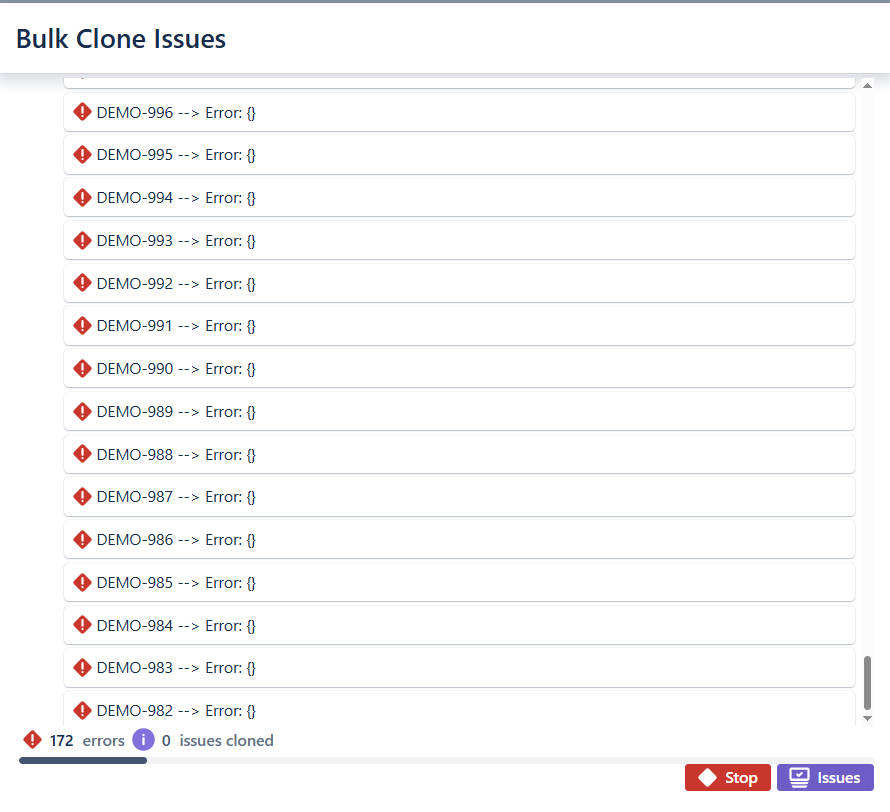
Finally the Bulk Clone Panel – You find it under “APPS–>Bulk Clone”, the tabpanel here contains a
- Dashboard – Gives you an overview of usage of the plugin
- Log – How has the cloning operation concluded
- xRay (only if xRay is installed & Enabled) that allows you to configer xRay usage
- Templates – All of the saved cloning templates for future reuse
- License – What type of license you are running on
You have now gone through a complete Bulk Cloning Operation, its not more complex than this.
Happy Bulk Cloning
Bulk Clone APPS Team

We offer professional services within Software Management, Enterprise Agility, Process Engineering, & Tooling. We also offer commercial IT add-ons for Workflow Management Products

We have extensive worldwide experience in countries such as United Kingdom, Germany, United States, France, Sweden, Denmark and others