
Context
The “Log” tab in **Bulk Clone Settings** lists every clone job that has ever run in your Jira site, grouped by month. Over time this list can grow large. Jira administrators have an extra **Bulk delete log history** panel at the top of the Log tab that lets them delete many job logs at once, in the background.
This feature only deletes the **clone job history records** (the entries you see on the Log tab). It does **not** delete any cloned Jira issues, comments, or attachments.
Who Can Use It
- The bulk delete panel is **only visible to Jira administrators**.
- Non-admin users continue to see the existing per-job **Delete** button on each completed job and can only delete their own job entries that way.
How to Open It
1. Open **Apps > Bulk Clone** (the global page).
2. In the left sidebar, click “Log”.
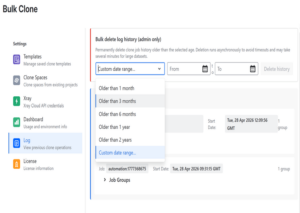
3. If you are a Jira administrator, the red-bordered “Bulk delete log history (admin only)” card appears at the top of the page.
Choosing What to Delete
Pick one of the following from the dropdown:
- Option – What it deletes
- Older than 1 month – All log entries with a start time more than 30 days ago
- Older than 3 months – All log entries older than 90 days
- Older than 6 months – All log entries older than 180 days
- Older than 1 year – All log entries older than 365 days
- Older than 2 years – All log entries older than 730 days
- Custom date range… – All log entries whose start time falls between the “From” and “To” dates you pick (incl, UTC)
- When you choose “Custom date range…”, – 2 date pickers appear next to the dropdown. Both “From” and “To” are required, and “From” must be on or before “To”
Running a Cleanup
1. Pick the period or date range.
2. Click **Delete history**.
3. A confirmation appears: “Are you sure? This cannot be undone.”, Click “Confirm delete” to start, or “Cancel” to back out.
4. A flag appears confirming that the cleanup has started. The card now shows a **Running** lozenge and a live “Scanned / Deleted” counter.
The cleanup runs “asynchronously in the background”, in batches of up to ~1,000 records per pass. This is necessary because Jira limits any single Forge resolver call to 25 seconds, which is not enough to delete a large history. You can leave the page — when you come back, opening the Log tab will reload the current status.
While a Cleanup is Running
- The dropdown, date pickers and “Delete history” button are disabled.
- A “Cancel cleanup” button is available. Clicking it stops the cleanup after the currently in-flight batch finishes — already-deleted records are not restored.
- The status counters update every few seconds.
When a Cleanup Finishes
- The status switches to “Last run: done” (green) or “Last run: error” (red, with the error message in a banner).
- A flag appears sumarising how many log groups were deleted out of how many scanned.
- The job list below the panel is automatically refreshed.
- A “Clear status” button appears so you can dismiss the last-run summary. Clearing the status does “not” undelete anything.
Notes & Caveats
- “Only one cleanup can run at a time.” – If a cleanup is already in progress, starting another one will be refused.
- The cleanup matches against the “start timestamp” of each log entry, not the end time.
- “Older than” periods are calculated using calendar days (1 month = 30 days, 1 year = 365 days). They are not aligned to month boundaries.
- Custom range dates are interpreted in **UTC**: From = `00:00:00 UTC` of the chosen day, To = `23:59:59 UTC` of the chosen day.
- The deletion is **permanent**. There is no recycle bin and no undo.
- Cancellation is a soft-stop — a long-running cleanup may delete a few hundred more records before it finally halts.

We offer professional services within Software Management, Enterprise Agility, Process Engineering, & Tooling. We also offer commercial IT add-ons for Workflow Management Products

We have extensive worldwide experience in countries such as United Kingdom, Germany, United States, France, Sweden, Denmark and others