
Clone Space — Feature Documentation
Overview
The Clone Space section allows you to create a new Jira project by cloning an existing project’s configuration and (optionally) its issues. It supports company-managed, team-managed, and service management projects.
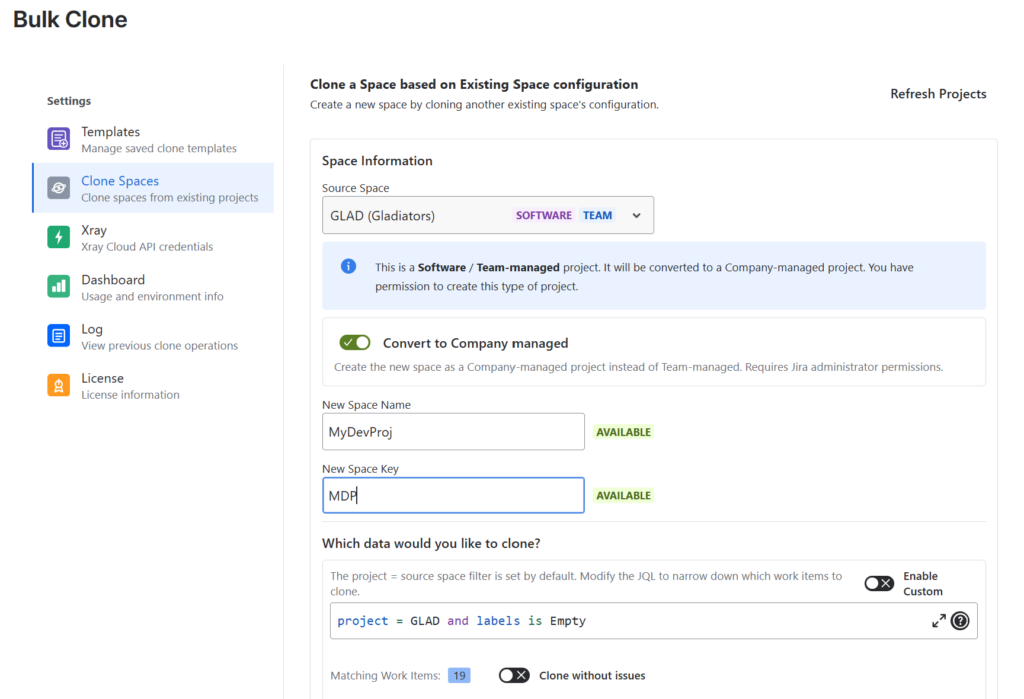
1. Space Information
Source Space
A dropdown to select the existing Jira project to clone from. Each project is labeled with its type (Software, Business, Service Management) and management model (Company-managed, Team-managed). Selecting a source project auto-populates scheme options and JQL filters.
Convert to Company Managed
(Visible only when the source is a team-managed project. Requires Jira Admin.)
Toggle to create the new project as a company-managed project instead of team-managed. When enabled, Jira admin permissions are required and scheme assignment options become available.
Project Template
(Visible only for team-managed source projects when “Convert to Company Managed” is off.)
Allows you to pick a specific project template (e.g. Scrum, Kanban, IT Service Management) for the new team-managed space.
New Space Name
The name of the new project. Validated in real-time — a green “Available” badge confirms the name is unique, a red badge indicates a conflict. If the name is already taken during creation, a numeric suffix is automatically appended.
New Space Key
The Jira project key (e.g. PROJ). Auto-generated from the name but can be overridden. Validated for uniqueness and format (uppercase, 2–10 characters). If the key is taken, retry logic appends a numeric suffix.
2. Data Cloning Options
JQL Filter / Custom JQL Mode
A JQL editor scoped to the source project by default (project = SOURCE_KEY). Use it to narrow which work items are cloned (e.g. by status, label, or sprint).
- Enable Custom toggle — Removes the enforced project = … filter, allowing you to pull issues from multiple projects into the new space.
- Matching Work Items — Shows a live count of issues matching the current JQL.
Clone without issues
Toggle that skips all issue cloning. Only the project structure (schemes, boards, sprints, versions, components) is cloned. When enabled, attachments and comments toggles are automatically disabled.
Clone sprints and boards
(Software projects only.)
Clones all boards from the source project (creates new Agile boards with dedicated saved filters) and all sprints (active, future, closed) mapped to those boards.
Clone attachments
(Disabled when “Clone without issues” is on.)
Copies all file attachments from source issues to their cloned counterparts.
Clone comments
(Disabled when “Clone without issues” is on.)
Copies all comments from source issues to the cloned issues.
Clone versions
Clones all project versions (releases) — including name, description, release date, and release status.
Clone components
Clones all project components — including name, description, lead, and default assignee.
Clone queues
(Visible only for Service Management projects.)
Clones the JSM request queues from the source project into the new space.
Clone Xray test details
(Visible only when Xray for Jira is detected and API credentials are configured in Settings → Xray.)
Clones Xray test-related metadata (test types, test steps, preconditions, test sets, test plans, test executions) for each cloned issue.
3. Scheme Assignments
(Hidden for team-managed source projects unless “Convert to Company Managed” is enabled.)
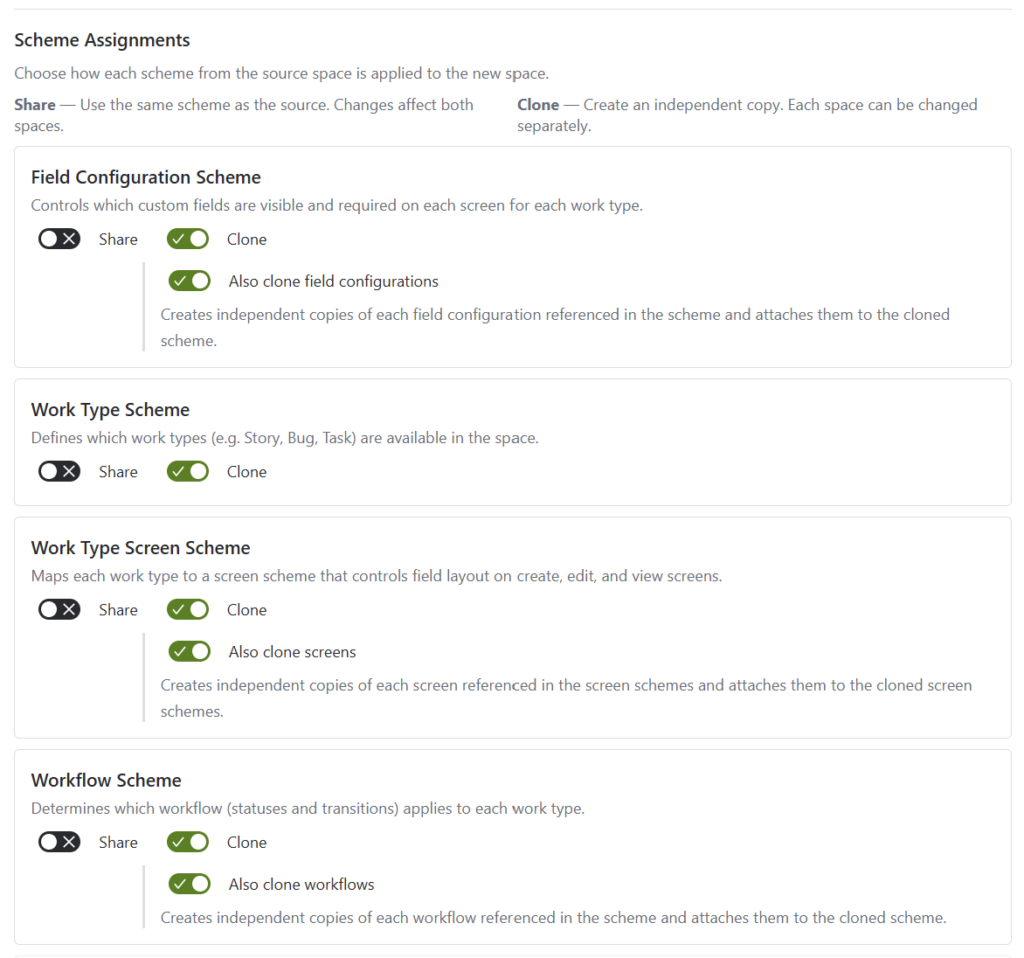
Each scheme offers two modes:
- Share — The new project uses the same scheme as the source. Changes to the scheme affect both projects.
- Clone — Creates a new independent copy of the scheme. Each project can be configured separately.
If neither is selected (both toggled off), Jira assigns its built-in default scheme.
Field Configuration Scheme
Controls which custom fields are visible and required on each screen for each work type.
- Also clone field configurations (sub-toggle, visible when Clone is selected) — Creates independent copies of each field configuration referenced in the scheme. Copies all field-level settings (visibility, required, renderer) except locked system fields. Without this, the cloned scheme still references the original field configurations.
Work Type Scheme (Issue Type Scheme)
Defines which work types (e.g. Story, Bug, Task) are available in the space.
Work Type Screen Scheme (Issue Type Screen Scheme)
Maps each work type to a screen scheme that controls field layout on create, edit, and view screens.
- Also clone screens (sub-toggle, visible when Clone is selected) — Creates independent copies of each screen referenced in the screen schemes (including all tabs and field assignments). Without this, the cloned screen schemes still point to the original screens.
Workflow Scheme
Determines which workflow (statuses and transitions) applies to each work type.
- Also clone workflows (sub-toggle, visible when Clone is selected) — Creates independent copies of each workflow referenced in the scheme. Without this, the cloned scheme still references the original workflows.
Permission Scheme (Required)
Controls who can view, edit, and administer the space. A permission scheme is always assigned to prevent unintended data exposure. The current user is automatically granted BROWSE_PROJECTS and ADMINISTER_PROJECTS permissions on the cloned scheme.
4. Operation Log
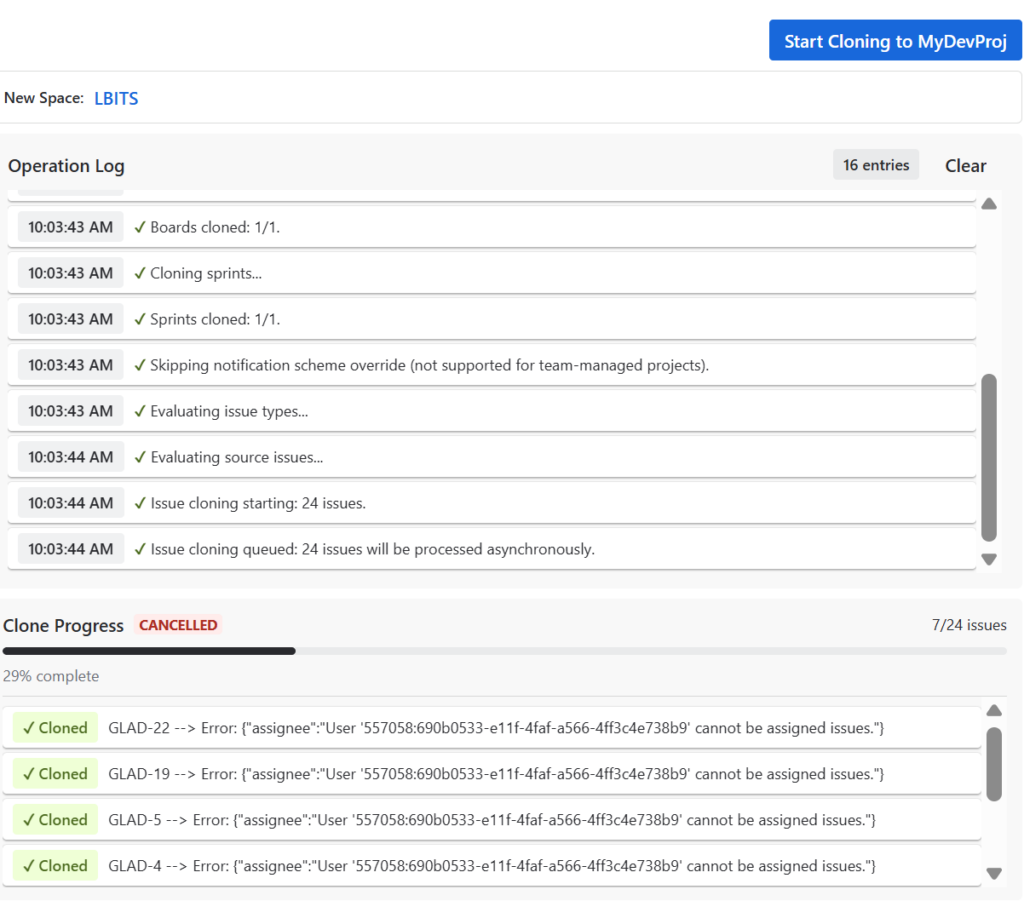
After clicking Start Cloning, a real-time Operation Log panel appears at the bottom showing timestamped progress entries for each step:
- Project creation
- Scheme assignments and cloning
- Board/sprint cloning
- Issue cloning progress (with live count)
- Errors and warnings
The log is populated from both the synchronous creation step and the asynchronous background setup/clone job.

We offer professional services within Software Management, Enterprise Agility, Process Engineering, & Tooling. We also offer commercial IT add-ons for Workflow Management Products

We have extensive worldwide experience in countries such as United Kingdom, Germany, United States, France, Sweden, Denmark and others